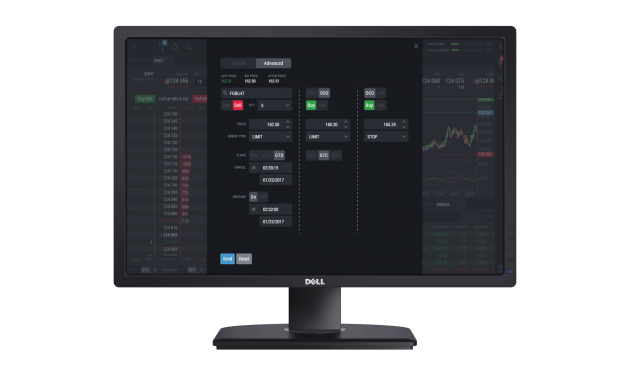
This guide walks you through connecting NinjaTrader to a prop firm account, from prerequisites through a verified live connection, so you can get set up and start trading with confidence.
Connecting NinjaTrader to your prop firm comes down to selecting the right connection and entering your credentials correctly. Once those pieces are in place, the setup is typically quick and straightforward. Most prop firms rely on a specific infrastructure, such as Rithmic, which determines how you'll connect.
What You Need Before You Get Started
Before you begin, make sure you have the core requirements in place. These essentials can help streamline your setup and reduce avoidable connection issues.
To connect NinjaTrader to a prop firm account, you'll need an active funded or evaluation account, your firm-provided login credentials, and a compatible data feed subscription before launching the platform.
Active prop firm account (funded or evaluation)
You'll need an active account with your prop firm. This can be either an evaluation account or a funded account, depending on where you are in your trading journey.
Firm-provided login credentials
Your prop firm will provide a username and password. These credentials are required to authenticate your connection and link your account to NinjaTrader.
Correct data feed subscription
NinjaTrader connects to most prop firm accounts through a Rithmic data feed. Make sure you know which connection your firm uses; selecting the wrong one can prevent your account from appearing.
NinjaTrader Desktop installed and licensed
If your firm uses a desktop-based connection (e.g., Rithmic), you'll need NinjaTrader Desktop installed and properly set up. Some connections may also require Multi-Provider Mode enabled in NinjaTrader Desktop (required if you'll connect to more than one provider).
Choosing Your Data Feed
Your data feed determines how NinjaTrader connects to your prop firm. This step is foundational, as it directly impacts account visibility and order routing.
What a data feed does in the connection process
A data feed is the connection between your trading platform and the market data and order routing infrastructure your prop firm uses. It powers chart data, pricing, and trade execution within NinjaTrader.
How to confirm which feed your firm requires
Check your prop firm's onboarding email, dashboard, or help center. Most firms clearly list the required connection type and may provide a step-by-step guide.
Which firms use which data feed
Most prop firms standardize on Rithmic. If your firm uses Rithmic, you'll connect through NinjaTrader Desktop using a Rithmic connection.
Use this quick reference to match your prop firm's infrastructure with the correct NinjaTrader connection type:
| If your prop firm uses | Select this in NinjaTrader |
| Rithmic | Rithmic connection (Desktop) |
| Tradovate-based credentials | Log in via Web, Mobile, or supported platforms |
Choosing the correct data feed from the start can help you avoid unnecessary troubleshooting later.
Connecting NinjaTrader to Your Prop Firm Account
Once you've identified your connection type, you're ready to configure your account in NinjaTrader. The process is consistent, with small variations depending on your provider. Following these steps can help you establish a working connection quickly and reliably.
Launch NinjaTrader and open the Connections panel
Start by opening NinjaTrader Desktop. From the Control Center, navigate to the Connections menu to begin setup.
Add and configure your data feed connection
Select the option to configure a new connection. Choose your provider (e.g., Rithmic), then begin entering the required setup details.
Enter credentials and select the correct system/gateway
Enter the username and password provided by your prop firm. If prompted, select the appropriate system or gateway; these settings are typically provided by your firm.
Confirm the connection attempt
Save your configuration and connect. Once successful, your account should appear within NinjaTrader and be ready for use.
NinjaTrader Prop lets you configure multiple prop firm connections in a single installation, no reinstall needed. Note: Only one Rithmic-based connection can be active at a time; you'll need to disconnect and reconnect when switching between Rithmic-based accounts.
Verifying Your Connection
After connecting, take a moment to confirm that everything is working correctly. This step helps ensure your account is fully ready for trading.
What a successful connection looks like
The connection status indicator in the Control Center toolbar will display a green icon or Connected label.
Account balance and position visibility
You should see your account listed in the account selector, along with balances, buying power, and any open positions.
What to look for if something doesn't appear right
If your account is missing or data is not loading, double-check your credentials, connection type, and selected environment.
Verifying your setup can help you catch problems early and trade with more confidence.
Firm-Specific Connection Guides
Not all prop firm setups are identical. Even when firms use the same provider, configuration details can vary.
Why steps vary between firms
Connection details can vary slightly between firms and providers. That's why some setup steps may differ depending on your account.
Partner connection guides
Many prop firms provide their own firm-specific setup instructions. You can also explore these resources:

Using the most relevant guide for your firm can help simplify the setup process.
Troubleshooting Common Connection Issues
If your connection doesn't work right away, a few quick checks can usually resolve the issue.
Quick reference: If a NinjaTrader connection fails after setup, common causes include incorrect credentials, unsigned data agreements in the provider's portal, or attempting to run two Rithmic-based connections simultaneously.
Issue 01 - Credential errors and data agreement requirements
Incorrect login details or missing data agreements are common causes of connection failures.
- Re-enter your credentials
- Confirm that all required agreements are completed
Issue 02 - Simultaneous Rithmic connection limitations
If you're using Rithmic, avoid running multiple conflicting connections at the same time. This can prevent a successful login.
For more detail troubleshooting, refer to Connection Loss Troubleshooting: NinjaTrader Desktop.
For additional support, refer to NinjaTrader Prop and Evaluation Account Inquiries.
Most connection issues can be resolved quickly once the root cause is identified.
If you're ready to take the next step…
Explore NinjaTrader Prop, find a prop firm that fits your approach, or build your trading knowledge with beginner-friendly resources.
FAQs on Connecting NinjaTrader to Your Prop Firm
You'll need the data feed your prop firm supports, typically Rithmic. Your provider will specify which one to use during onboarding.
Yes, NinjaTrader Desktop supports multi-provider connections. However, this depends on your providers and their connection rules.
Common causes include incorrect credentials, selecting the wrong connection type, missing agreements, or required permissions not being enabled.
Some connections require additional permissions, such as multiple broker access. Requirements can vary depending on your provider and connection type.
This website is operated by NinjaTrader and its affiliated entities.
Prop firm partners referenced on this page are independent third parties. Evaluation criteria, scoring, and any potential funding are determined solely by the respective prop firm partner and may change. NT Technologies, LLC does not evaluate, approve, or fund live trading accounts.
Account data, balances, and figures shown in platform mockups or screenshots on this page are for illustrative purposes only and do not represent actual account performance, results, or outcomes. Actual account data will differ.